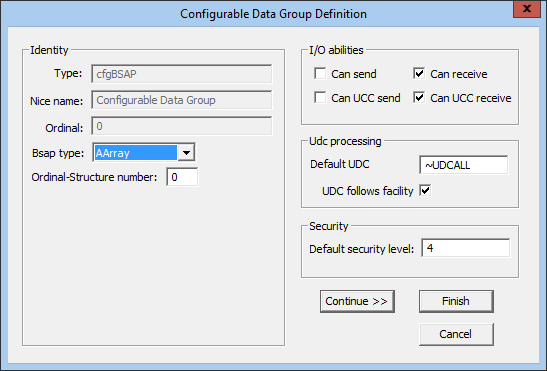
The BSAP EIE offers the ability to add data groups on an ad hoc basis to a device instance without configuring them first in the device template file. This functionality is handled through the "Configurable Data Group" (cfgBSAP) data group. Any number of device-level data groups can be added. This task is simplified if you have loaded one or more ACCOL Load Files into the device. Otherwise, the edit mode will be limited.
Note: The data group type name of cfgBSAP cannot be changed by the user.
Three array-related data group types can be configured using the "Configurable Data Group" (cfgBSAP) data group.
For more information about these and other data groups, see Data Groups.
To Configure an Array-Related Configurable Data Group
| Property | Description |
|---|---|
|
Type |
The field pre-populates with the cfgBSAP data group. |
|
Nice name |
The field pre-populates with Configurable Data Group and cannot be changed. |
|
Ordinal |
Ordinal pre-populates based on the sequence in which the data group is being added. |
|
Bsap type |
The data group type. |
|
Ordinal-Structure number |
Defines the source of the array in the Ordinal-Structure Number field. |
|
I/O abilities |
Check to enable the data group read/write options:
|
|
UDC processing |
Default UDC — the name of the UDC category used by default when mapping UDCs to data group elements. UDC follows facility — when selected, the UDC mapping follows the facility assigned to the data group. |
|
Security |
Default security level — The security level for the data group. Level 4 is the default. |

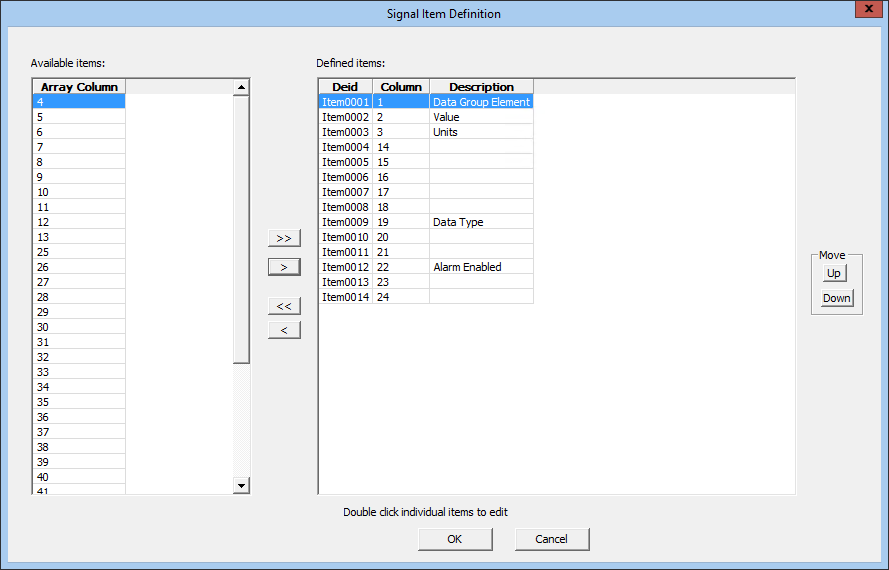
The Signal Item Definition dialog box defines the data group elements for the "Configurable Data Group" (cfgBSAP) data group. You can select any items from the ACCOL file for the data group’s type and structure(s). For example, if the data group represents a specific list, you can add any of the elements from that list. If the data group represents three lists, you can add any element from any of the three lists.
The elements are listed top to bottom in the data group's View Data dialog box in the order in which they are listed in the Defined items field of the Signal Item Definition dialog box.
| Attribute | Description |
|---|---|
|
Column DEID |
The data element ID. Valid characters (maximum of 10 characters) are A-Z, 0-9, dash (-), and underscore (_). Cannot contain spaces and must start with an alpha character. |
|
Column description |
A description for the item in the data group's View Data dialog box. |
|
Column label |
The name assigned to the "colLabel" attribute in the XML view. |
|
Column ID |
The ID number assigned to the column. This field cannot be edited. |
|
Hidden |
If set, the column is hidden in the data group's View Data dialog box. |

|
|
|

